Machine Translation Settings
About this task
Follow these steps to configure the credentials used when requesting Machine
Translations.
Procedure
- Open the Preferences dialog.
- On macOS, select on the menu or press [
Cmd + ,]. - On Windows or Linux main menu, select .
The Preferences dialog appears: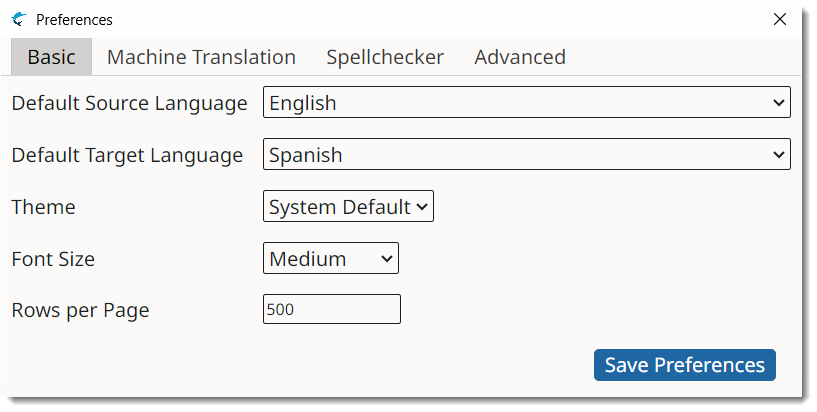
- On macOS, select on the menu or press [
- Select the Machine Translation tab.
- Select Google option to configure Google Cloud
Translation engine. Preferences dialog switches to:
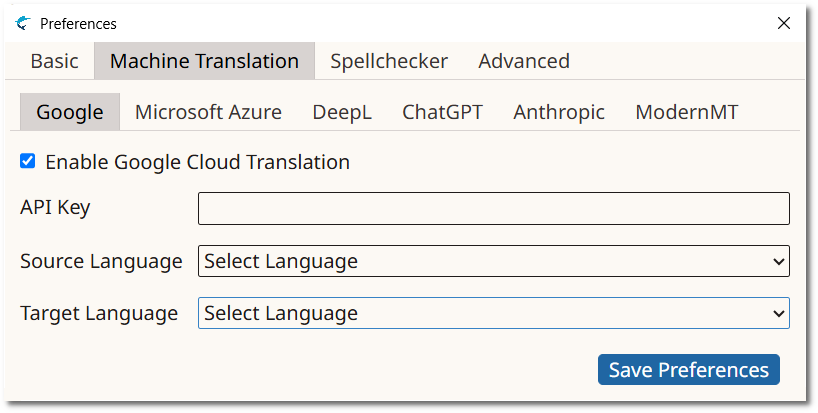
- Check the Enable Google Cloud Translation box.
- Enter your API Key in the API Key text box.
- Select a source language from the Source Language drop-down.
- Select a target language from the Target Language drop-down.
- Select Microsoft Azure option to configure Azure
Translator Text API engine. Preferences dialog switches to:
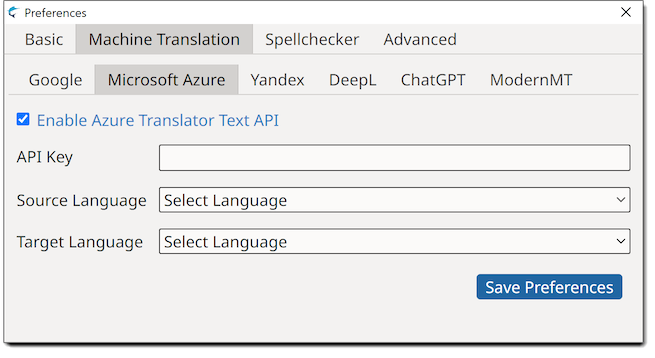
- Check the Enable Azure Translation Text API box.
- Enter your API Key in the API Key text box.
- Select a source language from the Source Language drop-down.
- Select a target language from the Target Language drop-down.
- Select DeepL option to configure DeepL API engine.
Preferences dialog switches to:
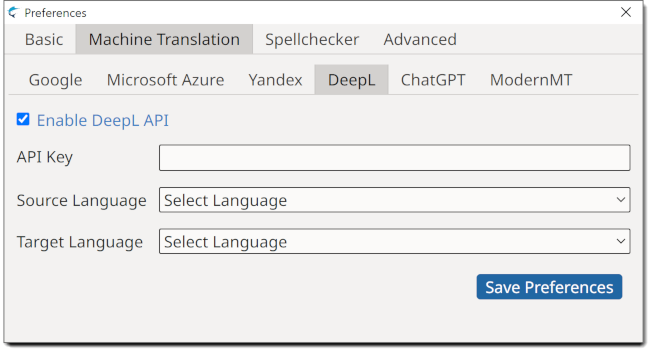
- Check the Enable DeepL API box.
- Enter your API Key in the API Key text box.
- Select a source language from the Source Language drop-down.
- Select a target language from the Target Language drop-down.
- Select ChatGPT option to configure ChatGPT engine.
Preferences dialog switches to:
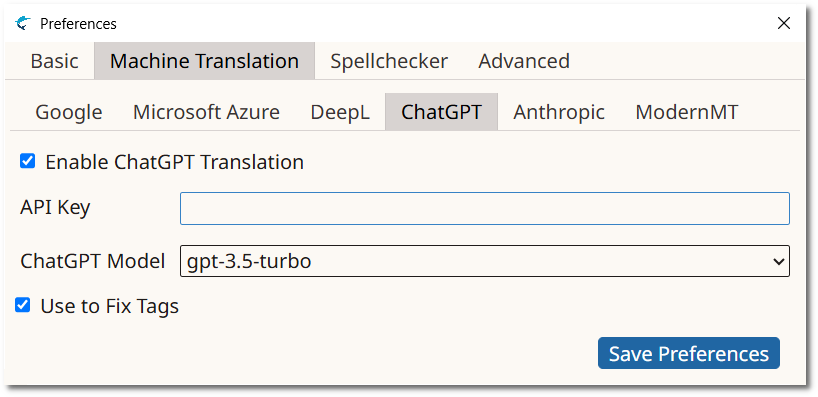
- Check the Enable ChatGPT Translation box.
- Enter your API Key in the API Key text box.
- Select the model to use from the ChatGPT Model drop-down.
- Optionally, select the Use to Fix Tags checkbox to configure ChatGPT as the default AI engine for fixing tags.

Note
ChatGPT supports, in theory, translating from any language to any language. Project languages are automatically used for requesting translations. - Select Mistral option to configure Mistral engine.
Preferences dialog switches to:
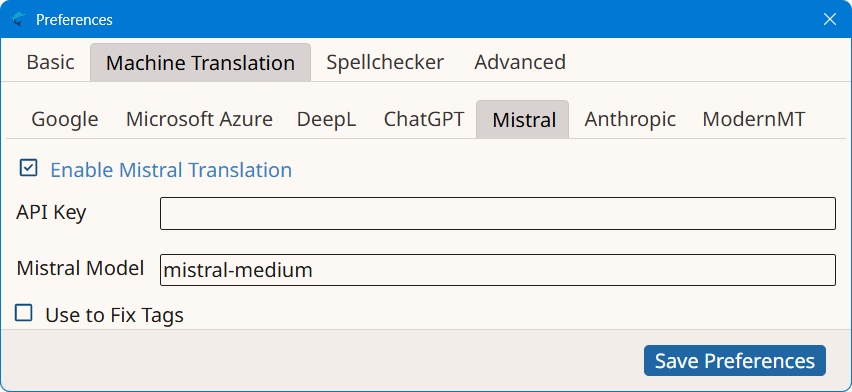
- Check the Enable Mistral Translation box.
- Enter your API Key in the API Key text box.
- Select the model to use from the Mistral Model drop-down.
- Optionally, select the Use to Fix Tags checkbox to configure Mistral as the default AI engine for fixing tags.
Note
Mistral supports, in theory, translating from any language to any language. Project languages are automatically used for requesting translations. - Select Qwen option to configure Alibaba's Qwen
engine. Preferences dialog switches to:
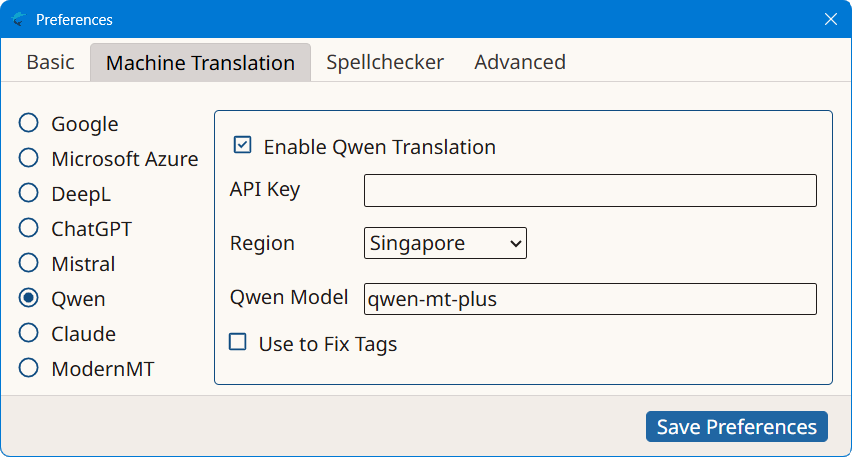
- Check the Enable Qwen Translation box.
- Enter your API Key in the API Key text box.
- Select the region that corresponds to your API key from the Region drop-down.
- Select the model to use from the Qwen Model drop-down.
- Optionally, select the Use to Fix Tags checkbox to configure Qwen as the default AI engine for fixing tags.
Note
Qwen supports, in theory, translating from any language to any language. Project languages are automatically used for requesting translations. - Select Claude option to configure Anthropic's Claude
engine. Preferences dialog switches to:
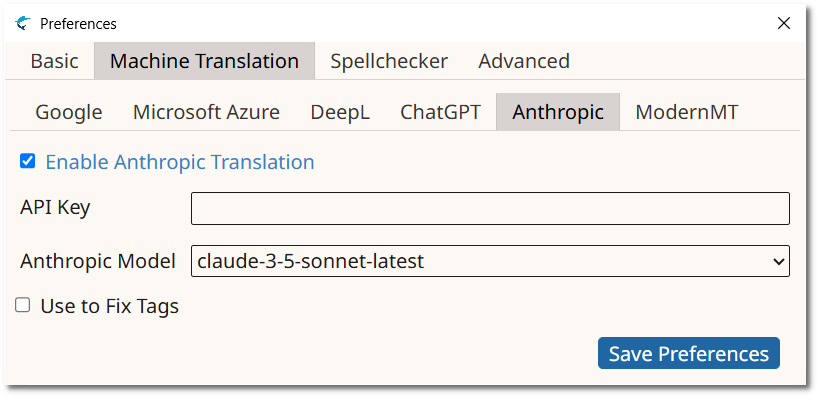
- Check the Enable Claude Translation box.
- Enter your API Key in the API Key text box.
- Select the model to use from the Claude Model drop-down.
- Optionally, select the Use to Fix Tags checkbox to configure Claude as the default AI engine for fixing tags.
Note
Claude supports, in theory, translating from any language to any language. Project languages are automatically used for requesting translations. - Select Gemini option to configure Geoogle Gemini
engine. Preferences dialog switches to:
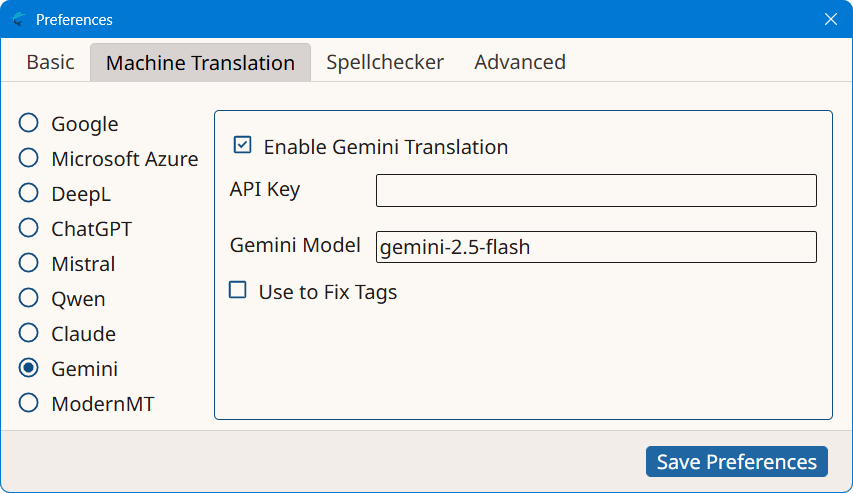
- Check the Enable Gemini Translation box.
- Enter your API Key in the API Key text box.
- Select the model to use from the Gemini Model drop-down.
- Optionally, select the Use to Fix Tags checkbox to configure Gemini as the default AI engine for fixing tags.
Note
Gemini supports, in theory, translating from any language to any language. Project languages are automatically used for requesting translations. - Select ModernMT option to configure ModernMT engine.
Preferences dialog switches to:
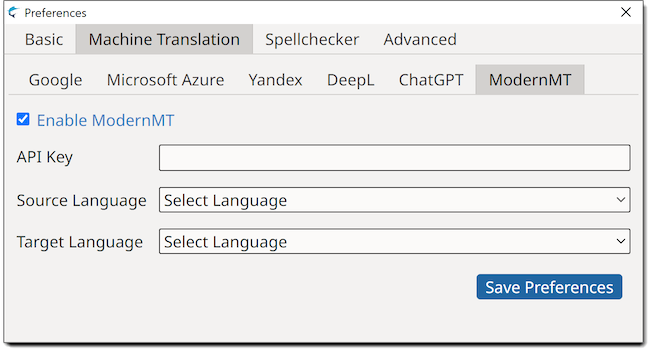
- Check the Enable ModernMT box.
- Enter your API Key in the API Key text box.
- Select a source language from the Source Language drop-down.
- Select a target language from the Target Language drop-down.
- Select Google option to configure Google Cloud
Translation engine. Preferences dialog switches to:
- Click on the Save Preferences button to save your changes.